美化pwsh
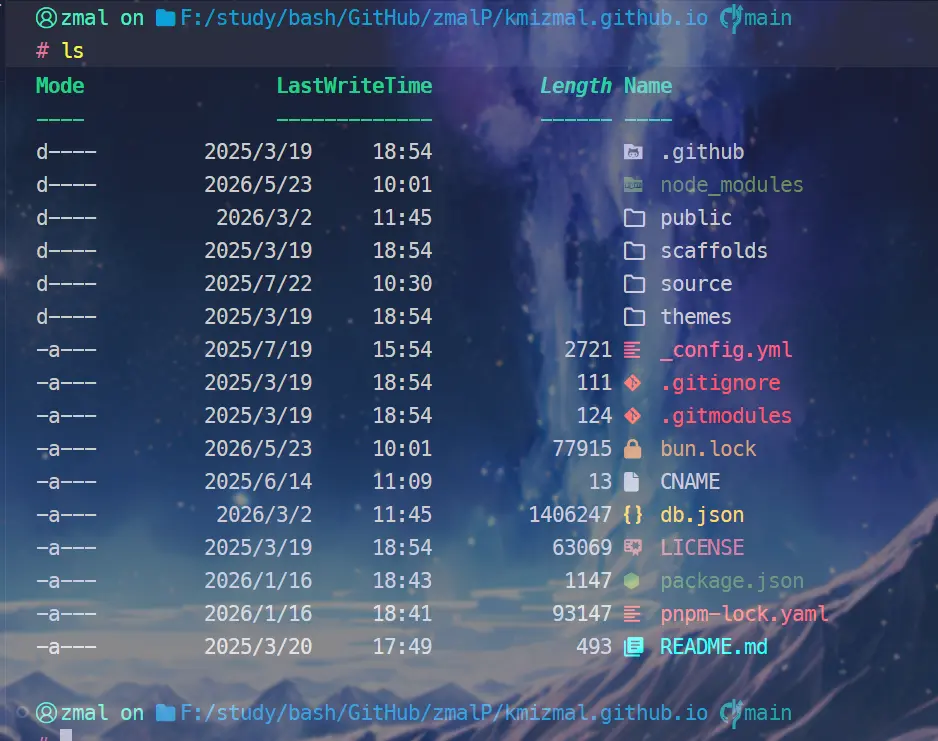
先看效果

安装pwsh7
https://github.com/PowerShell/PowerShell
安装 Oh My Posh 本体
powershell执行
winget install JanDeDobbeleer.OhMyPosh -s winget安装完成后记得关掉窗口重开刷新环境变量
安装字体支持
oh-my-posh font install meslo如果报错 无法将“oh-my-posh”项识别为 cmdlet、函数、脚本文件或可运行程序的名称
输入以下命令手动添加环境变量 或者确定你重启了powershell
$env:Path += ";C:\Users\<user>\AppData\Local\Programs\oh-my-posh\bin"安装完成字体后,下面要在配置文件中指定使用的字体:
在打开的Windows Powershell界面按下Ctrl+shift+, 在打开的settings.json配置文件中找到”defaults”项, 在其中加入"face": "MesloLGM Nerd Font"
插入后结构如下:
{
"profiles":
{
"defaults":
{
"font":
{
"face": "MesloLGM Nerd Font"
}
}
}
}配置使用Oh My Posh
在 Windows Powershell 输入以下命令创建profile:
New-Item -Path $PROFILE -Type File -Force然后打开它:
code $PROFILE
#或者使用记事本
notepad $PROFILE填入这行代码并保存:
oh-my-posh init pwsh --config 'C:\Program Files\WindowsApps\ohmyposh.cli_<需要替换为具体的版本号>\themes\<需要指定明确的主题文件>' | Invoke-Expression示例
oh-my-posh init pwsh --config "C:\Program Files\WindowsApps\ohmyposh.cli_29.14.0.0_x64__96v55e8n804z4\themes\amro.omp.json" | Invoke-Expression可以在 这里 寻找你喜欢的主题样式
保存配置后重启终端 Oh My Posh 应该就可以正常使用了
额外的图标库配置
Install-Module -Name Terminal-Icons -Repository PSGallery
code $PROFILE
#或者使用记事本
notepad $PROFILE在文件尾部加上以下内容并保存:
Import-Module -Name Terminal-Iconsvscode中使用
在vscode中使用 Ctrl+shift+P 后输入 Terminal: Select Default Profile,然后选择 Windows Powershell 即可同步终端设置
设置字体避免乱码:
在vscode设置中搜索font,找到 terminal下的FontFamily设置,输入
MesloLGLDZ Nerd Font, Consolas, 'Courier New', monospace参考资料
https://blog.hananya.cafe/archives/ohmyposh-tutorial
https://github.com/PowerShell/PowerShell
https://github.com/JanDeDobbeleer/oh-my-posh